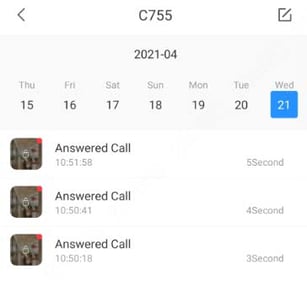
DMSS App Set-Up
1. Download & install the DMSS app
2. Once the app has been downloaded, create an account by clicking on the 'Sign Up' button.
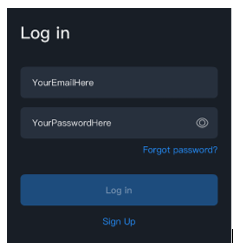
(Either a personal account or a shared account for multiple people to access)
3. Once the account has been created, we advise you to inform us which email address has been used to create the DMSS account. Please send to ptz@ninehundred.co.uk.
By doing this we will be able to add the users account to the camera they have purchased / hired before receiving them.
Please be aware, users can be added at a later date if required.
Once we have received your information, we can add the user to the device. The user will have access to the device, no password or username required.
How to Add Users To Your Devices
Once you have been granted ownership and accepted, you will then see below,

You will instantly be able to see the camera on the DMSS app. To add colleagues, simply press the  icon.
icon.
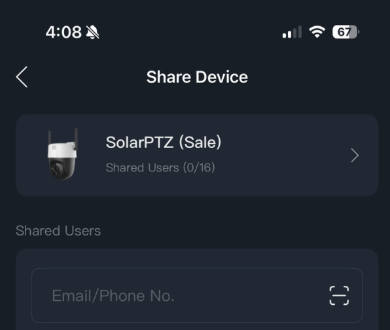
You should then see the below. Add the emails of the accounts you want adding to the device , ensuring they have created and verified the DMSS app account. Once the email has been entered, click share and the users will also get instant access to the device.
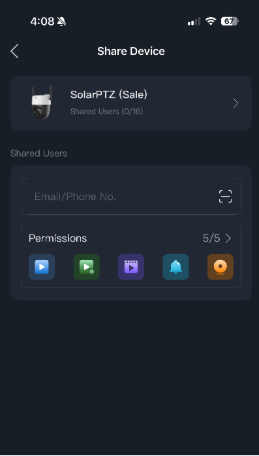
The image below shows the permissions tab. This allows the owner of the camera to alter permissions they may want to give to colleagues, for example, disable them from moving the camera.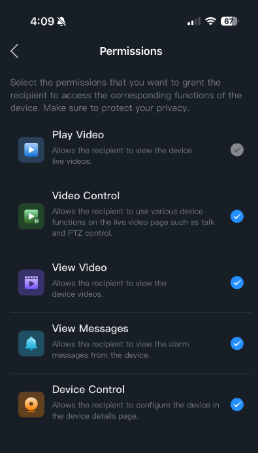
How To Remove Users From Your Devices
To remove users from access to your camera, click where the camera icon is at the top of the page. This will then take you to a page showing all current users on the camera.
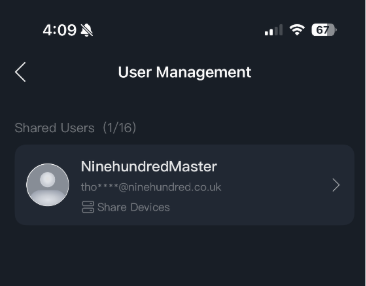
Select the user you want to delete by clicking on the persons email address, then at the bottom of the page it will show "Cancel Sharing". Select "Cancel Sharing" and the user's access will be removed from this device.
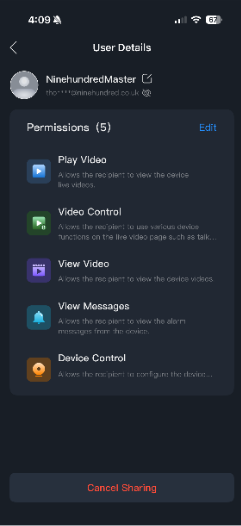
You can also modify a user's permissions in this view by clicking the edit button.
Live View
You can view the monitoring channels and do the operations such as taking snapshots, recording videos, and adding channels to favourites.
Step 1
On the Home interface, tap  .
.
Step 2
Play a channel or multiple channels
- Play a channel: Tap
 in the window, and then select a channel in the device list to be played
 - Play multiple channels: Tap
 , select channels in the device list as needed.
When displayed channels exceed the maximum number of displaying window you set, swipe left or right to view other live videos.
Step 3
Operate on the live videos
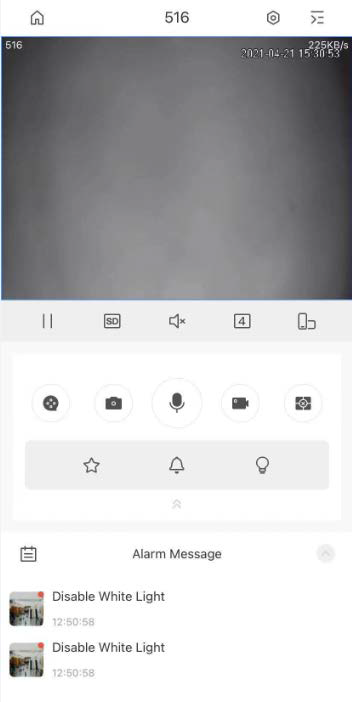
| Function | Description |
| Device details |
Tap
|
| Play/Pause | Tap  to pause playing and tap to pause playing and tap  to play to play |
| Video Stream | Tap  to switch between SD and HD video quality to switch between SD and HD video quality |
| Mute/Unmute | Tap  to mute the video. Tap to mute the video. Tap  to unmute to unmute |
| Window Split | Tap  to change window split modes. You can display in 1, 4 9, or 16 windows. to change window split modes. You can display in 1, 4 9, or 16 windows. |
| Landscape | Tap  to change image orientation to landscape. to change image orientation to landscape. |
| Recording playback | Tap  to go to video playback interface and today's recording will be automatically played if it exists. to go to video playback interface and today's recording will be automatically played if it exists. |
| Snapshot |
Select a video, and then tap
|
| Video recording |
Select a video, and then tap
|
| Voice chat |
Select a video, and then tap Tap and hold the icon till the Voice Call interface is displayed. Tap the device to which the channel belongs to enable device talk if the function is supported.
|
| Memory play/Close videos |
Memory play: Tap Close videos: Tap |
| PTZ Control |
Select a video, tap Tap Tap Tap Use
|
| Fisheye |
Select a video, tap
|
| Wipers |
Select a video, tap Tap Single, the wiper works one time, and then stop. Tap Enable, then configure time interval, the wiper works after each time interval. Tap Stop, the wiper stops working.
|
| Spotlight/Buzzer |
Tap
|
| Change video place | Tap and hold a video, and then you can move it to the target window. |
| Enlarge window | Double tap the window to enlarge it. Double tap again to restore. |
| Help | If the video is not properly played, tap Help in the window to solve the problem. |
| Delete video | Tap and hold a video till the trash bin appears at the top of the interface. Drag the video to the trash bin, and then release. |
 to go to the device details interface, and then you can configure your device. For details, see "2.3 Managing Devices".
 You can also tap of a device on the Home to view its details
 to take a snapshot.
 to start recording. Tap the icon again to stop recording.
  to enable two-way voice call if the functions is supported.
 (a tick in the centre) to play the channels that have been played last time.
 ( a cross in the centre) to close all the played videos.
 , and then tap
  to control PTZ.
 to zoom in or zoom out the image.
 to adjust the brightness of the video.
 , select the preset point, and then tap
  to turn the PTZ to the monitoring target.
 to control PTZ directions. Left, right, up, down, upper-left, upper-right, lower-left, and lower-right are supported.
 to enable fisheye. Swipe on the screen to adjust the display of effect of video image.
 and then the wiper control interface is displayed.
 , and then select
  to enable white light; select
  to enable buzzer.
Step 4
Click  to select the date to view the corresponding video as needed.
Video Playback
You can search and play back videos according to time, video type, and channels.
 Before playing back videos, you need to set alarm rules and record plan of the channel.
Step 1
On Home interface, tap 
Step 2
Tap  or
or  to select a channel or multiple channels.
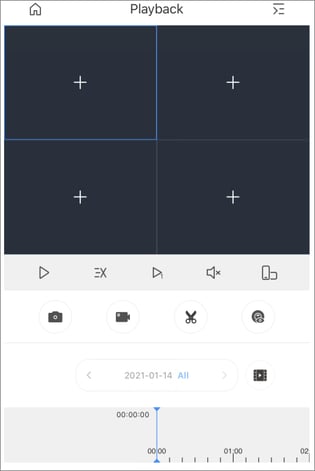
Step 3
Tap  to change date and record type. The data with a blue dot means it has videos.
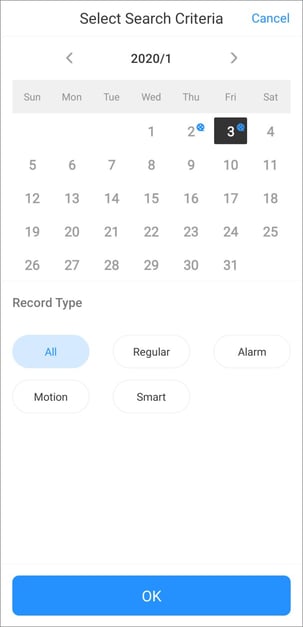
Record types are as follows:
- All (grey): Play all types of records by default
- Regular (green): Normal recordings
- Alarm (red): Record when alarm is triggered, such as audio alarm and local alarm
- Motion Detection (orange): Record when motion detection alarm is triggered
- Smart Recording (yellow): Record when smart event alarm is triggered such as face detection and recognition, IVS, video metadata, and more.
| Function | Description |
| Play back videos |
Select a video, and then you can:
|
| Clip | Select a video, and then tap  to clip the video. Drag time bar, tap to clip the video. Drag time bar, tap  to set a start point, and then tap to set a start point, and then tap  to set a stop point. to set a stop point. |
| Time bar | The colour block indicates recorded videos with different types. Grey means all videos; green means regular videos; red means alarm videos; orange means motion detection videos; yellow means smart videos. Drag the time bar to view the record of any time frame. Pinch or stretch out to zoom the bar. |
 : Pause playing;
  : Continue playing
 : Play slowly;
  Play Fast;
  : Play by frame
 :Mute the video;
  : Unmute the video
 : Changes image orientation to landscape
Video Call
You can view the live video of the added video intercoms, realise video calls between the device and App, lock/unlock the door and more.
Step 1
On the Home interface, tap  .
.
Step 2
Tap  or
or  to select a channel.
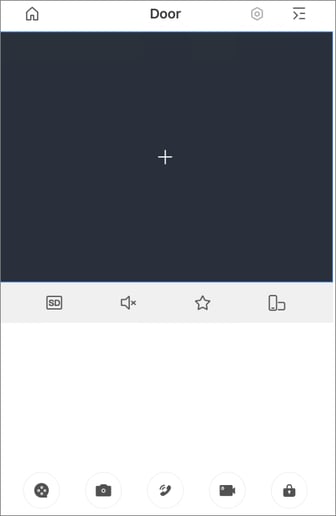
| Function | Description |
| Video stream | Tap  to switch between SD and HD video quality to switch between SD and HD video quality |
| Mute/Unmute | Tap  / / to mute/unmute the video to mute/unmute the video |
| Favourites | Tap  to create a favourites group and add the selected channel to the Favourites or to the existing favourites group. to create a favourites group and add the selected channel to the Favourites or to the existing favourites group. |
| Landscape | Tap  to change image orientation to landscape to change image orientation to landscape |
| Recording playback | Tap  to go to video playback interface and today's recording will be automatically played it it exists. to go to video playback interface and today's recording will be automatically played it it exists. |
| Snapshot | Tap  to take snapshots during video call to take snapshots during video call |
| Answer/End the call |
App answers the call from VTO: Tap
|
| Recording | Tap  to start recording during video call to start recording during video call |
| Unlock |
Tap
|
 to answer the call; tap
  to decline or hang up the call
 Enable Alarm Subscription of the VTO which will allow you to answer the call on App when VTO is calling
 to unlock the door
 VTO that has two locks can be added to the App. Tap
  or
or  to unlock the door.
Step 3
View the call history of VTO between app.
Tap Message at the bottom of the interface.
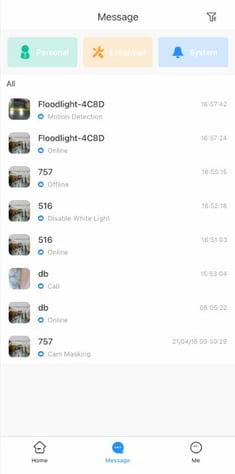
Tap a VTO as needed, and then you can view the call history (such as time, duration), and play back the recorded video.