
Step 1
Download and install SmarttPSS:

Once downloaded, open the app.
Step 2
Select 'Live View'
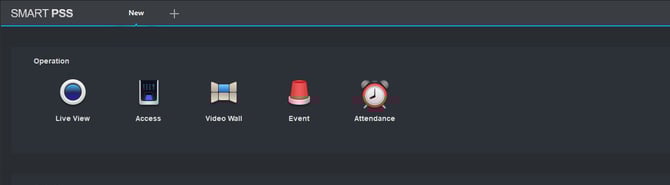
Step 3
Choose a camera you would like to configure from the left.

Step 4
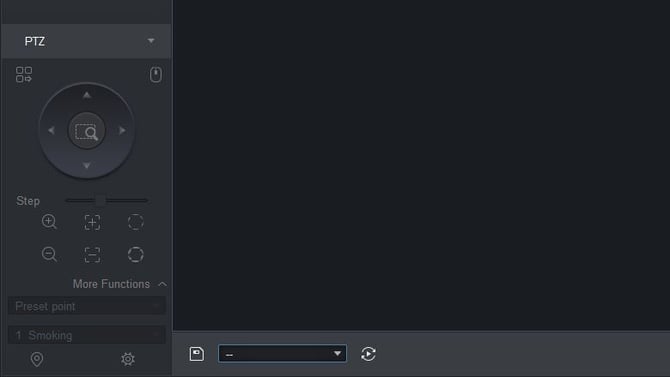
Move the cam to the location you want to set the event, then at the bottom left
find a spare pre-set number. Name the pre-set by clicking on the number. After,
click the tick to complete the name change.

Step 5
You can now test this by using the PTZ function and moving the cam away
from the area and by pressing the pin, the cam will then point in the new
direction.
Step 6
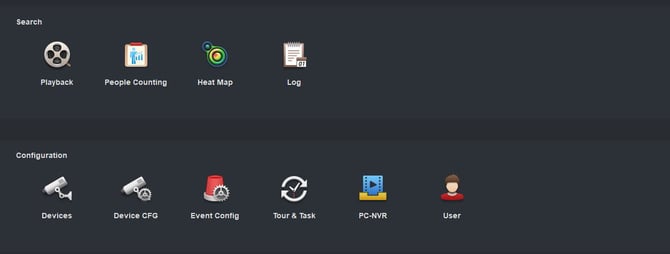
At the top select the + symbol.

Step 7
Select devices.
Step 8
Tick the device you want to configure and select the settings cog on the right.
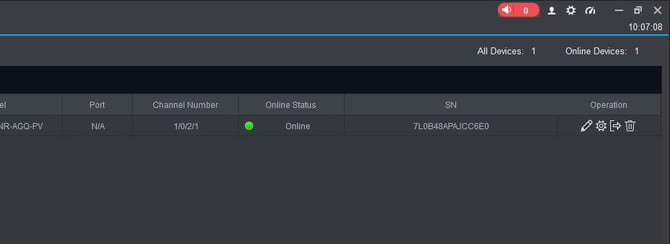
Step 9
Click ‘Link to Web’.
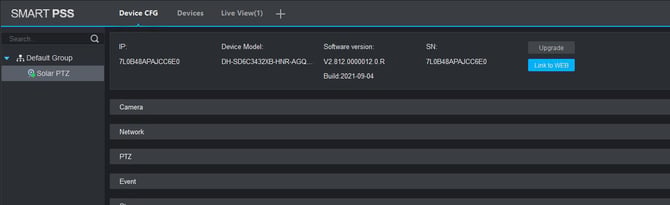
Step 10
Login with your username and password.
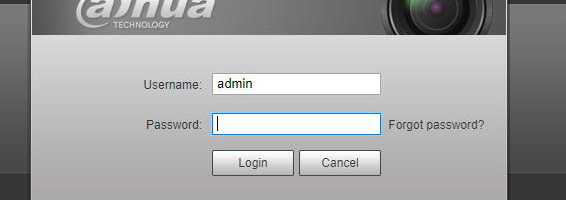
Step 11
Select the ‘settings tab’ and then events on the left.
Step 12
Select ‘Video Detection’ from the drop down menu and enable ‘Motion Detection’ while here you can also tick how you would like to be notified.
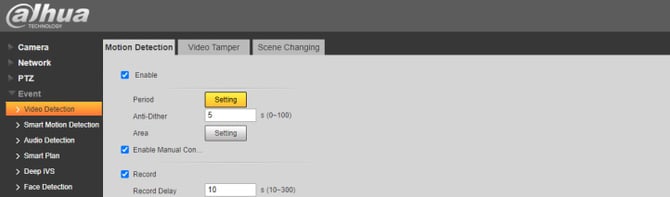
Step 13
Select ‘Smart Motion Detection’ from the drop down menu and enable. Here you can choose ‘Human’ or ‘Motor Vehicle’ or Both (this will stop any false alarms being raised because the cam can tell the difference between both)
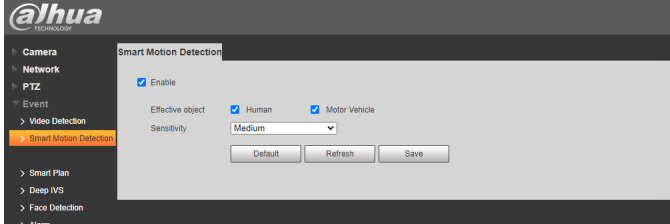
Step 14
Select ‘Smart Plan’ then open the dropdown to select the preset you made
before in section 4.
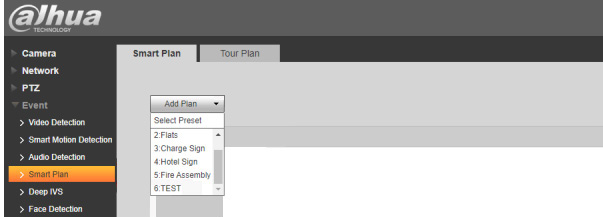
Step 15
Select ‘Deep IVS’ and then click save.
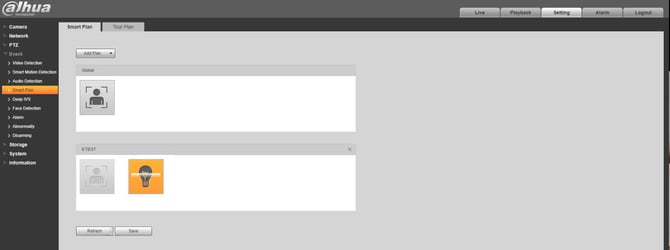
Step 16
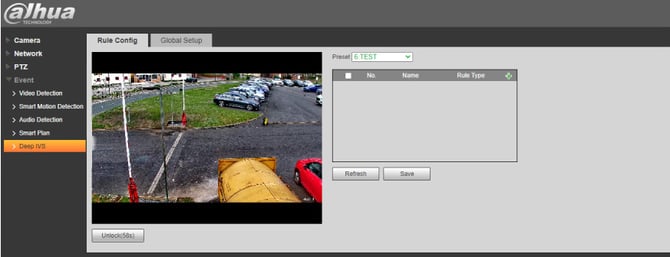
Select ‘Deep IVS’ on the left hand side and make sure you are in the
‘Rule Config’ tab and the preset that you want to configure is selected.
Step 17
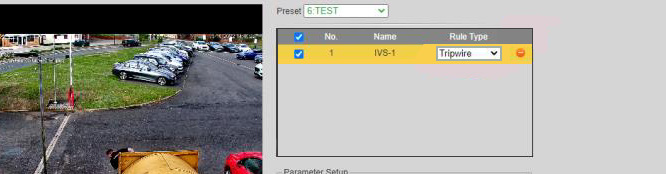
Click the green + symbol and from the drop down menu select the type of event you want to create each one works diffrently so you need to decide on the best for your situation.
Step 18
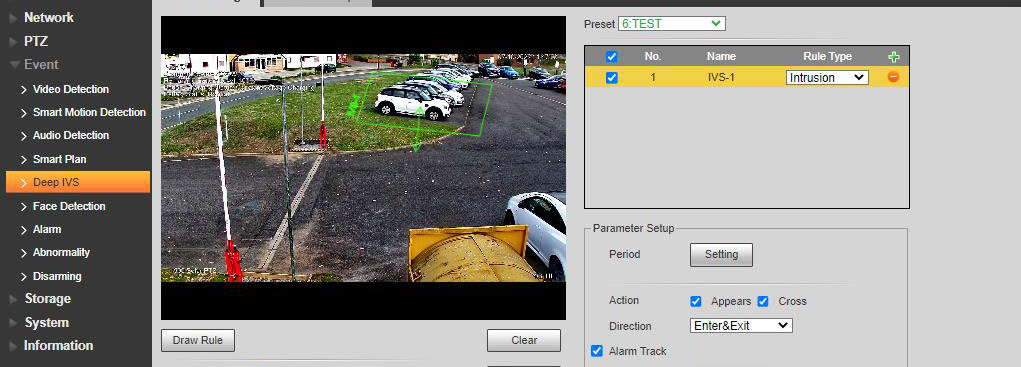
Now you need to draw the rule. Click the ‘Draw Rule’ button and then draw the rule on the screen with the left mouse button then, right click the mouse to finish drawing the area. For this example, we will use the ‘Intrusion’ rule and we
have it set for entry and exit. We also have it set for humans and vehicles with a tracking of 30sec (this means the cam will track anyone that crosses the line rule for the trip wire for 30seconds).
Step 19
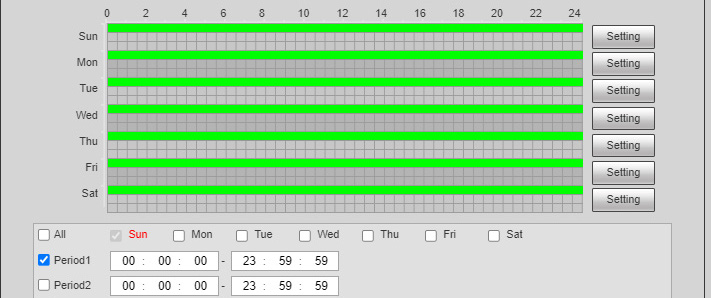
Now we have set our rule we want to tell the cam when to activate. We do this
by selecting the ‘period settings’ button.

Step 20
From here you can now select when this event is activated.
Step 21
Setting up of the intrusion is complete.